Manual actions on a member
The Actions button on a member profile opens a modal that lets you fire one operation against this one member, immediately — no campaign, no audience, no schedule. Three categories: Assets (Add / Redeem points or credits, Send asset, Punch a punch card), Communication (Send SMS / email / notification), Delete member. Use it for service touches, demos, and one-off corrections that don't justify a Smart Campaign.
Manual actions are the per-member equivalent of a Smart Campaign action — the same things a Rule could do, but fired by you, against one member, right now. They bypass the audience / trigger / case machinery entirely; you click, the action runs.
Walkthrough
Open the member profile of the person you want to act on, then click the Actions button in the top right. A modal opens with three sections.
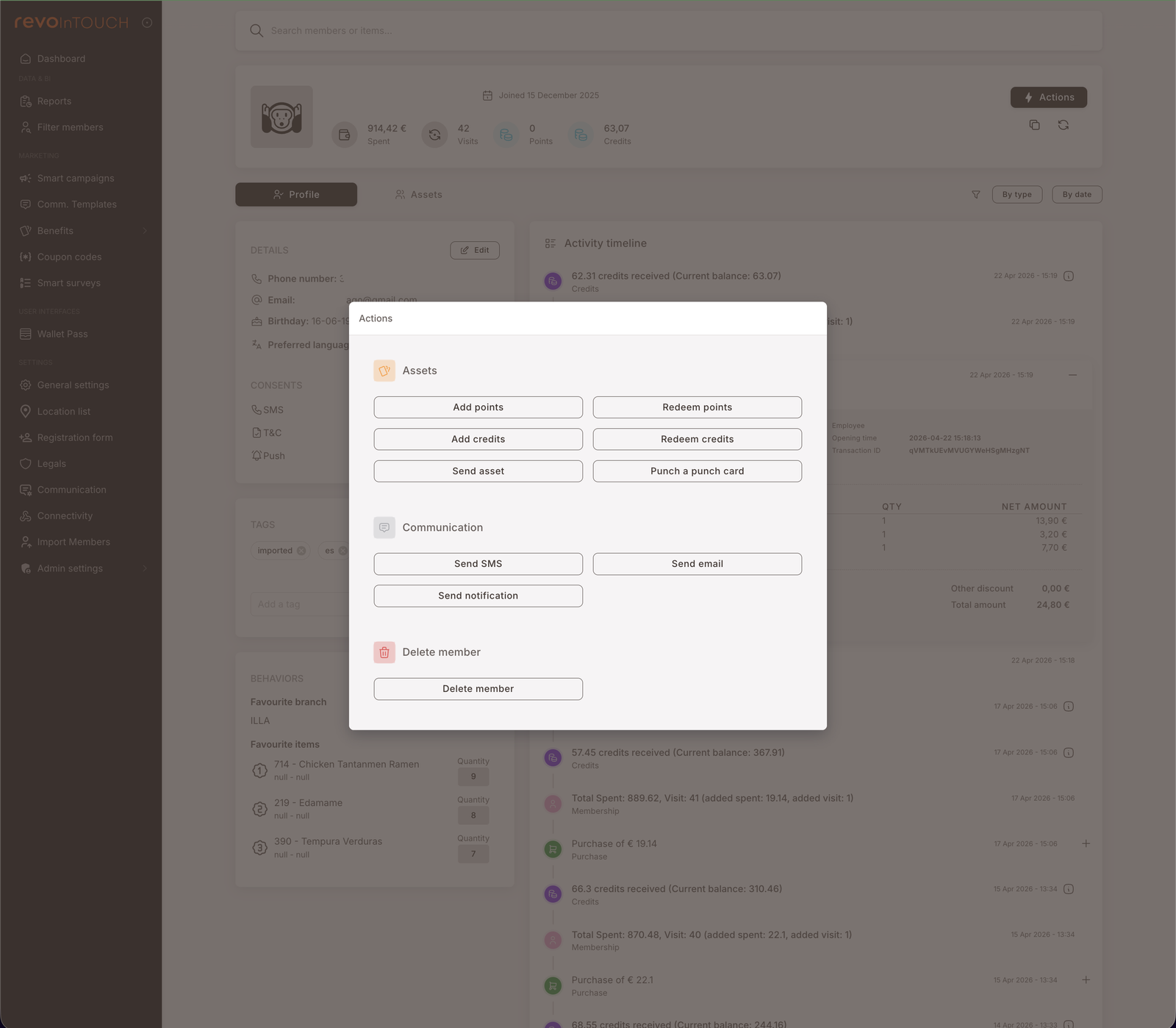
Assets
Six asset-shaped operations:
- Add points — grant a points balance increase to this member. Useful for service corrections ("add 100 points to make up for the bug") and one-off promos ("give this member 500 points as a launch gift").
- Redeem points — manually deduct points. Mirror of Add points; used when something redeemed off-system needs to be reflected back in the balance.
- Add credits — grant a credits balance increase. Same shape as Add points but for the credit currency.
- Redeem credits — manually deduct credits.
- Send asset — issue a Gift to this member from the Benefits → Gifts library. The picker shows your existing Gifts; pick one and it lands in the member's wallet.
- Punch a punch card — add a punch to the member's active card from the Benefits → Punch cards library. If the member doesn't have an active card, an empty one is auto-issued and the first punch applied (same behaviour as the Punch a punch card Rule action).
Communication
Three send-shaped operations. Each picks from the same template library as the Smart Campaigns equivalent action — and for SMS and Notification, you can also write a custom message directly in the modal without saving a template first.
- Send SMS — text this one member. Choose a saved SMS template, or switch the source to Custom and type the body inline.
- Send email — pick from a saved Email template. Email is template-only — no Custom option (same as the Send email action on a Smart Campaign). Email is a paid service the same way it is on a campaign send.
- Send notification — pick from a saved Notification template, or switch the source to Custom and write the notification directly.
Delete member
One action:
- Delete member — removes the member from the program. Irreversible.
Use this for compliance requests (GDPR right-to-erasure), test-account cleanup, and duplicate-account merges.
The same phone and email cannot register again
Deleting a member does more than empty their record: it also blocks that phone number and that email address from creating a new member in your program. This is deliberate, and the reason is fraud prevention. Without it, someone could collect the welcome gift, the birthday gift and any other joining benefit, ask to be deleted, register again with the same number, and collect all of it a second time.
What you'll see afterwards:
- The member still appears in Filter members as a deleted member, with no details. The personal data is gone; what remains is a non-identifying trace whose only job is to recognise that phone or email at registration.
- Registration from the web app or the mobile app is refused for that number or address.
- Adding the person manually from the panel is refused too — the check is on the identity, not on the channel it arrives through.
The control is designed to be GDPR and KVKK compliant, and rests on the legitimate interest of preventing fraud.
If a specific person genuinely needs to register again — usually a member who asked to be deleted and then changed their mind — the block can be lifted for that one phone number or email address. Ask your support contact; it isn't something you can do from the panel.
Deleting a test member burns that phone number and email address for that business. Use a fresh number or address for each round of testing, or you'll run out of ways to sign up.
When to reach for a manual action
Manual actions are right for:
- Service touches — "add 50 credits to apologise for the wait", "send this member a 10€ Gift to thank them for the feedback".
- Demos — showing a partner or prospect what an SMS / email looks like, by sending it to a real test member.
- Corrections — fixing balances after a POS sync issue, manually issuing an asset that should have come through a Rule but didn't.
- One-offs — anything that should happen exactly once, to one specific person. If it should happen to more than one member, even just two, consider Filter members → One-time action instead. If it should happen more than once on a trigger or schedule, that's a Smart Campaign.
Manual actions are wrong for:
- Anything you'd want to repeat for the next member who walks in. Build a Rule.
- Anything you'd want to send to a population. Build a Future Campaign or use Filter members.
- Anything that needs to fire automatically on an event. Build a Rule.
Gotchas
4 things to watch for
- The operator behind a manual action is hidden by default — but recoverable. Manual actions show up in the member's activity timeline alongside Rule-driven actions and look identical on the surface (a credit grant looks the same whether a Rule did it or you clicked the button). To see who on your team performed it, click the small ℹ️ icon next to the log entry — it expands a detail panel that includes the operator's account.
- Manual actions don't fire Rules. A Send asset fired manually is a one-off; it doesn't trigger a Rule listening on "asset received" or similar. The cascade-of-actions behaviour you'd get from a Rule chain isn't replicated when you do the equivalent manually.
- Delete member is irreversible. The button doesn't double-confirm in any unusual way; clicking deletes. Use the
test-usertag pattern to mark scratch members and consider a tag-based bulk-delete approach over individual clicks if you're cleaning up many. It also closes that identity for good: the same phone number and email can't register again afterwards — see The same phone and email cannot register again. - Communication consents are still enforced. Manually sending an SMS to a member who hasn't given SMS consent will be blocked at delivery, the same way a Rule's send would be. The action button doesn't override consent.