Your app in more than one language
Your app can speak several languages. You add a language in Wording, then fill in its translations. You don't have to type them one by one: export every line of text as a CSV file (a simple spreadsheet), translate the file in one go, and import it back.
In short
- Add the language in Wording.
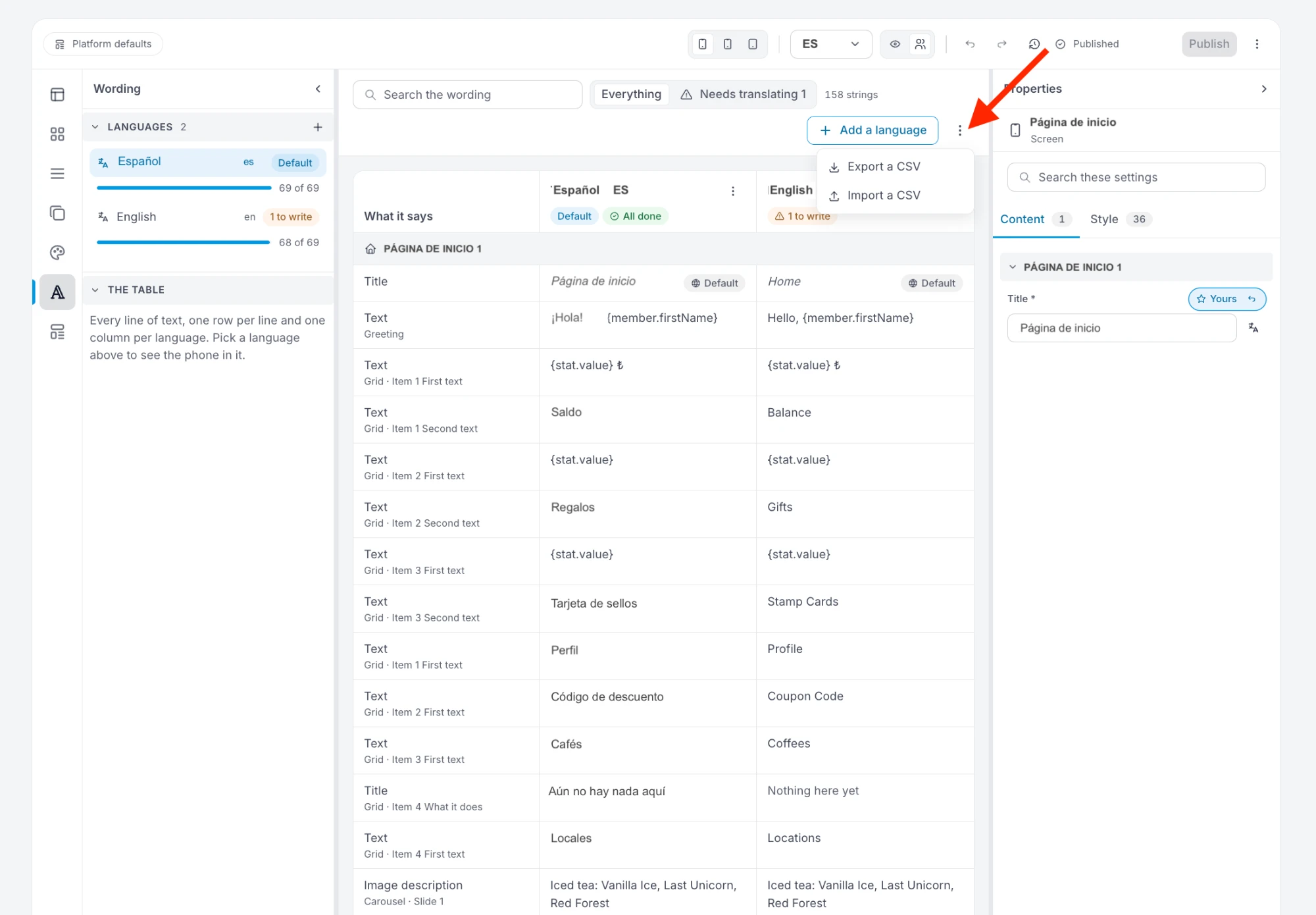
- Export a CSV from the ⋮ menu above the wording table.
- Translate the file in a spreadsheet or any translation tool, and read it through.
- Import the CSV, check the phone in the new language, and Publish.
What your members see
- Their phone's language, when your app has it. Otherwise, your default language.
- A language row on the Profile screen, as soon as your app has two languages. A member taps it to switch.
- Your default language on any line not translated yet, so a half-finished translation never leaves a gap.
Step by step
1. Add the language
- Open Wording in the left bar. The Languages list shows each language of your app and how much of it is written.
- Press + next to Languages, or Add a language above the table.
- Type the language code, for example
enfor English orcafor Catalan, and press Add.
The new language starts empty, so every line in it is waiting for a translation.
2. Export a CSV
- If the table isn't showing, press Open the wording table. It has one row per line of text and one column per language.
- Open the ⋮ menu next to Add a language and choose Export a CSV.
The file downloads to your computer. Its first column, key, identifies each line of text. Then comes one column per language.
The file holds the rows the table is showing. Pick Needs translating above the table to export only the lines still waiting. For every line, pick Everything and leave the search box empty.
3. Translate the file
Fill in the new language's column. You can paste the texts into any translation tool and do them all at once, but read the result before you import it: short labels, out of context, are easy to get wrong.
- Keep the first row and the key column exactly as they are. They tell the editor where each translation goes.
- Leave anything in curly brackets untouched, like
{member.firstName}. The app fills it with the member's own details. A changed one shows nothing. - Save the file with commas, as UTF-8. Google Sheets does both: File, Download, Comma-separated values (.csv). Excel set to Spanish, German or Turkish usually saves with semicolons instead, and then the editor imports nothing.
4. Import it back
- Open the ⋮ menu again, choose Import a CSV, and pick your file.
- The editor tells you how many values it imported. If something is wrong, press Undo in that message.
Good to know:
- A blank cell changes nothing. An import never clears a translation, so a file with only some lines filled in is fine.
- Add the language first. If the file has a column for a language your app doesn't have yet, the editor ignores it and tells you so.
5. Check it, then publish
- Click the new language in the Languages list to see the phone in it, and go through your screens. See Check it before your members see it.
- When nothing is missing, the language shows All done. Needs translating above the table lists any line still waiting.
- To fix a single line, click its cell in the table and type.
- Press Publish. See Publish, and undo a mistake.
Adding a language and importing are saved like any other change, and reach your members when you publish. From then on, members whose phone is in that language see the app in it, with your default language on any line still missing.
The ⋮ at the top of a language's column can fill its empty cells by copying another language. Each copied cell starts with [TODO] so a translator can find it, and your members would see that mark too. Replace them all before you publish: Needs translating lists them.